
Free OBS scoreboard overlays for live sports
Your game. Your teams. The score on everyone’s stream.
Create a scoreboard, copy its overlay URL into OBS, and keep score from your phone or computer. The transparent overlay updates as you score.
Create OBS ScoreboardNo signup to start. One guest board, up to 50 board views. Free overlays include branding. See plan limits.
Already have a board? Follow the OBS setup ↓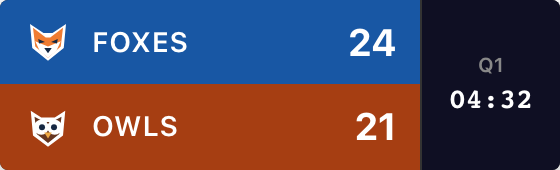
Create Your Scoreboard
Choose a sport, name your teams and pick a style. Try the +1 buttons if you want to see a score change.
Your names, scores and style carry into the board. Creating it opens the scoring controls and the Scorebug dialog, where you can copy your overlay URL.
This starter supports basketball, football, soccer, baseball, hockey, volleyball and other games. For softball, pickleball, tennis and more, start with the scoreboard maker, then open Scorebug in your board’s admin panel.
Easy Browser Source Setup
Have OBS Studio open on your streaming computer, with your camera or game source in a scene. Here’s where to get the scoreboard link.
1. Open Scorebug in your board’s admin panel
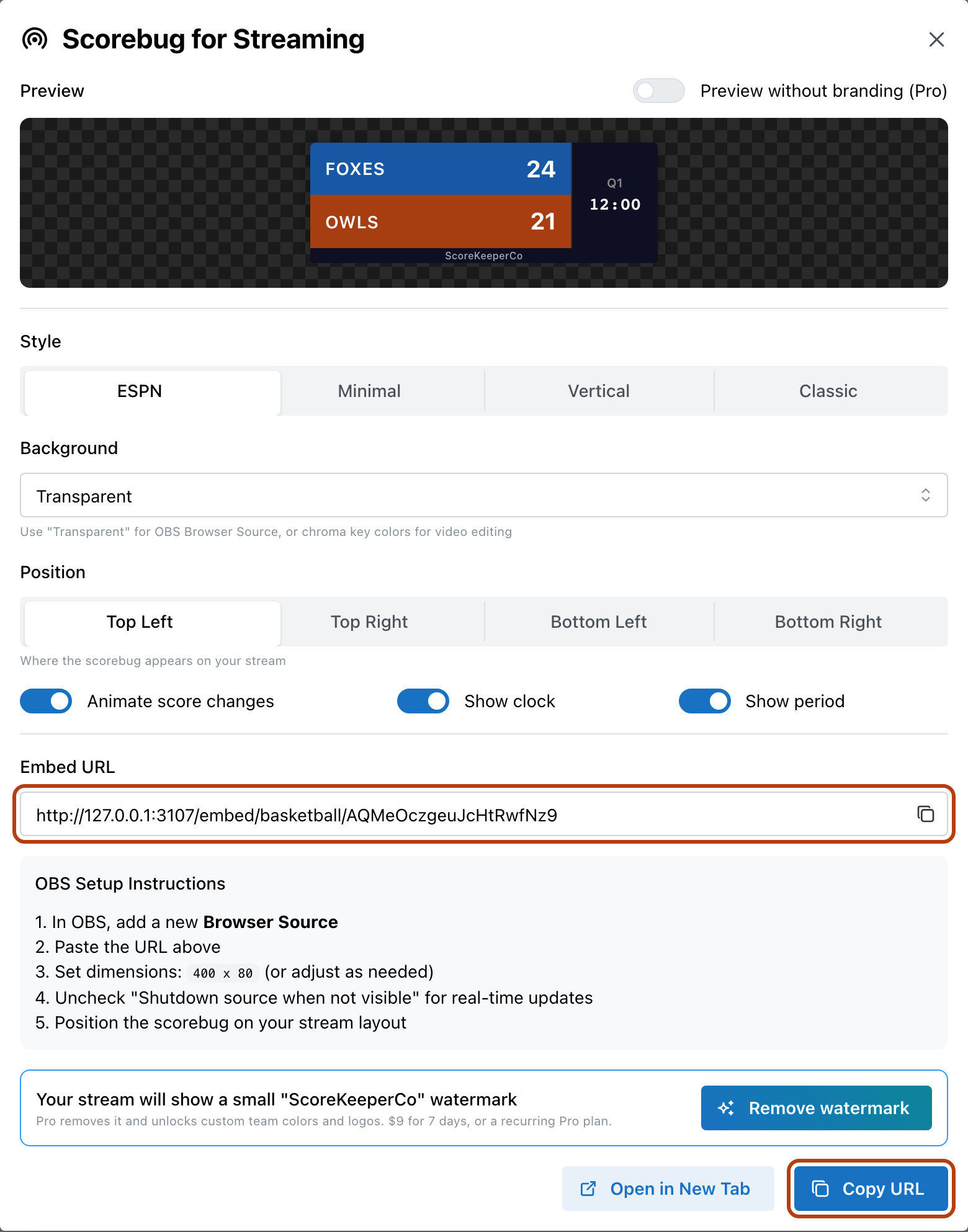
Scroll below the scoring controls and appearance settings. Click Scorebug beside Publish. If you just created a board using the form above, this dialog opens for you.
Keep the admin page open: this is where you’ll change the scores during the game.

2. Choose Transparent, then Copy URL
In Scorebug for Streaming, choose a Style and keep Background → Transparent. Use Top Left while setting up the example.
Click Copy URL at the bottom. You need the address in Embed URL, which contains /embed/. The admin address contains /admin/ and is for scoring.
If you change the style, background or position later, copy the updated URL into OBS again. Score changes sync through the existing URL.
3. Add the link to OBS
In your scene’s Sources panel, choose + → Browser. Name it “Game score” and click OK.
Paste your copied link into URL. Start with these settings for the basketball example, then click OK. In the Sources list, place Game score above your camera or game capture. Move it into position in the scene preview.
These are setup instructions, not a screenshot of OBS. Field behavior is documented in the official OBS Browser Source guide.
- Local file
- Off
- URL
- Paste your copied Embed URL
- Width × Height
- 800 × 200 for this example
- Shutdown source when not visible
- Off, to keep the page loaded
Different styles need different space. If a clock, team name or watermark is clipped, increase the source dimensions first, then resize its placement in your scene.
Live Updates Without Refresh
4. Test a score change before you go live
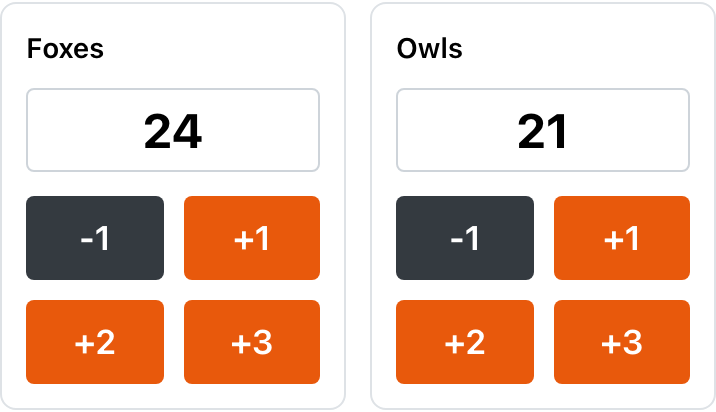
In the admin panel, add a point. Check that the overlay changes too. Use Undo last action to restore the score before the game starts.
Score from multiple devices
OBS can stay on your streaming computer while a volunteer scores from a phone. Give that person the admin link; it provides editing access. Keep that link with your scorers and use the overlay URL in OBS.
Both devices need an internet connection. The app sends your scoring changes to the overlay; it does not read a camera feed or automatically import match results.
For physical buttons, see Stream Deck scoreboard controls.
If the overlay doesn’t look right
I see the website or scoring buttons
Replace the source URL with Scorebug → Copy URL. A Browser source needs the overlay address, rather than the landing page or admin page.
The background is a solid color
Open Scorebug, select Transparent, and copy the new URL into OBS. Keep OBS’s default Browser source CSS unless your setup specifically needs a change.
The score is cut off or hidden
Increase Width and Height in Browser source properties. Check that the source is visible and above the video source. A vertical style needs more height than a horizontal one.
The score isn’t updating
Check the admin panel for a save error and confirm both devices are online. Open the copied URL in a browser to compare it. If that shows the current score, use Refresh cache of current page in OBS’s source properties.
Multiple Score Bug Styles
Use the compact ESPN-style layout, Minimal, Classic or Vertical. The starter calls the ESPN-style option “Broadcast”; the Scorebug dialog labels it “ESPN”. Preview the actual result before choosing a corner of your stream. Clock and period options depend on the sport and style.
For a closer look at what these graphics do, see the scorebug maker. You can adjust the style and display options in the dialog without hand-editing URL parameters.
Stream clean: remove the watermark
Free overlays include “ScoreKeeperCo”. Paid plans can remove that branding and unlock custom team colors and logos. The Pro preview toggle only changes the preview; it does not remove branding from a free overlay. See Pro pricing for current passes and subscriptions.
Also streaming to Streamlabs or vMix?
Choose the guide for your software or destination:
- Streamlabs scoreboard
- vMix scoreboard
- XSplit scoreboard
- Ecamm Live scoreboard
- PRISM Live Studio scoreboard
- Twitch scoreboard overlay
- YouTube Live scoreboard overlay
- Live streaming overlays
- Best OBS overlay comparison
- Control it from a Stream Deck
Not streaming - just need it on a website?
Use the embeddable scoreboard widget for a team or league webpage. It shows the board in the page without requiring OBS.
Frequently Asked Questions
Do I need an OBS scoreboard plugin?
No extra scoreboard plugin is needed. ScoreKeeperCo runs in your browser, and OBS loads the overlay through its built-in Browser source. You need an internet connection and a scoreboard URL; keep the admin panel open to update scores.
What is a scorebug in OBS?
A scorebug (or score bug) is the compact graphic showing a game's score, clock and period over the video. OBS loads ScoreKeeperCo's scorebug as a Browser source. You keep score in the admin panel; the overlay displays those updates.
How do I add a scorebug to OBS Studio?
Create your board here, then open Scorebug in its admin panel. Leave Background set to Transparent and click Copy URL. In OBS, select your scene, choose Sources → + → Browser, and paste the URL. Start with an 800 × 200 source for the basketball example below, then position it above your camera source. Test a score change before going live.
Does this OBS scorebug work for NFL-style football overlays?
The football board supports scores, quarter, game clock, down, distance and possession. Its broadcast-style scorebug shows the game information you control. It does not import NFL results or use official league graphics. Choose Football in the setup form for your own game.
Is the OBS scoreboard overlay free?
You can start one guest scoreboard without signing up. The free plan allows up to 50 board views and the overlay includes ScoreKeeperCo branding. Paid plans add capacity and can remove branding. Check pricing before planning an ongoing broadcast setup.
Level Up Your OBS Streams
Set up your teams, copy the overlay URL, and test your first score change.
Create OBS ScoreboardNeed a hand? Contact us with the step you’re stuck on.