
Free vMix scoreboard for professional broadcasts
Keep the score over your camera feed. Create a board, add its URL to vMix as a Web Browser input, and let a scorekeeper update it from a phone.
Create vMix ScoreboardNo signup to start. One guest board, up to 50 board views. Free overlays include branding. See plan limits.
Already have a board? Follow the setup ↓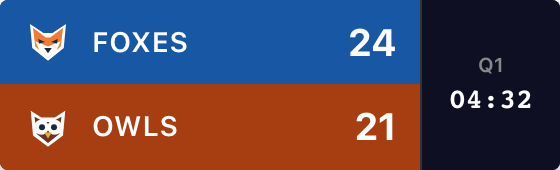
Create Your Scoreboard
Choose your sport and name the teams. Try the +1 buttons, then create the board to get its overlay URL.
Your names, scores and style carry into the board. The scoring controls open with the Scorebug dialog ready to copy the link.
For softball, pickleball, tennis and more, start with the scoreboard maker, then open Scorebug in your board’s admin panel.
Native vMix Integration
Use vMix’s built-in Web Browser input. The scoreboard is a live webpage; you don’t need a ScoreKeeperCo plugin. Have your camera input and board’s admin page ready.
1. Copy the overlay URL
In your board’s admin panel, scroll below scoring and appearance settings. Click Scorebug beside Publish. The starter above opens this dialog for you.
Choose Background → Transparent, then Copy URL at the bottom. Use the Embed URL, which contains /embed/. Keep the admin link for scoring.

2. Add Web Browser Input
In vMix, choose Add Input → Web Browser. Paste your copied URL and set the input’s Width and Height, then confirm with OK.
For the compact basketball example, start at 800 × 240. Give vertical layouts more height; match full-width layouts to your stream canvas. Check the whole graphic fits before positioning it.
vMix supports transparent web inputs. The official Web Browser guide explains rendering dimensions and alpha transparency.
3. Position it over your camera
Open the new input’s settings and choose Position. Use Zoom for size and Pan X / Pan Y for placement. See vMix’s Position controls.
Click an unused numbered overlay button beneath the scoreboard input—such as 1 if it’s free—to show it over the current camera. Click it again to take it off.
An input smaller than your output starts centered in vMix. Move it into the corner you want; its size and position inside the browser are only part of the final placement.
Check Preview and Output. Right-clicking a numbered overlay button previews it; the next cut or transition sends that previewed overlay to Output. Test this before going live. See vMix’s overlay-button behavior.
Remote Score Control
Give the scorekeeper the admin link. They can enter scores on a phone, tablet or computer while the video operator handles camera switches. The admin link permits editing; put the read-only overlay URL in vMix.
4. Go Live
Add a test point and check it in the vMix output. Correct the score using your sport’s controls. Switch cameras and confirm the overlay stays where you placed it.
Both devices need internet. Score changes sync without a manual refresh, but the stream can add viewer delay. Someone still needs to enter scores and operate the game clock.
If the overlay doesn’t look right
I can see the input, but not the score over my camera
Check that the scoreboard is active on a numbered overlay channel and look at Output as well as Preview. Selecting an input by itself does not enable that overlay. Check that another graphic isn’t covering it.
The overlay is cut off or covers the action
Increase the Web Browser input’s Width or Height if a name, clock or branding is clipped. Then use Position → Zoom and Pan to place it. Crop only unused space; check all game information remains visible.
The scoreboard disappears after a few seconds
Check Overlay Settings → Duration for that channel. Set it to 0 to disable automatic closing, as described in the vMix overlay settings. Also check whether another action is switching that channel off.
The background is solid or the score is stale
For transparency, set Background to Transparent in Scorebug and copy the updated URL into vMix. For a stale score, check the admin page for save errors and open the overlay URL in a separate browser. If that is current, reload the vMix web input. Confirm both devices are online.
Built for Live Production
Choose Broadcast, Minimal, Classic or Vertical in the starter. The Scorebug dialog labels Broadcast “ESPN”. Clock, period and game details vary by sport and layout; compare the real examples in the scorebug style guide.
vMix HD, 4K and Pro can use this Web Browser workflow. Available overlay channels depend on your version and edition; check vMix’s edition comparison when planning score, sponsor and replay graphics together.
Looking for a vMix scoreboard template download?
This tool creates a hosted overlay URL. It does not export an editable GT title file. If you need a downloadable title to edit inside vMix, vMix’s GT Title Designer is a different workflow. Here, scores and appearance are controlled in ScoreKeeperCo.
Stream clean: remove the watermark
Free overlays include “ScoreKeeperCo”. Paid plans can remove it and add custom team colors and logos. The Pro preview toggle only changes the preview, not a free board’s published overlay. See Pro pricing for current passes, subscriptions and limits. Your vMix license is separate.
If you change the style, background or corner in ScoreKeeperCo, copy the updated URL into vMix. Score changes continue through the existing URL.
Running other software alongside your vMix rig?
Choose the guide for your broadcasting software or destination:
Frequently Asked Questions
What is a scorebug in a vMix production?
A scorebug (or score bug) is the compact score graphic over a sports broadcast. ScoreKeeperCo supplies a transparent Web Browser input for vMix. Activate it on an overlay channel to show it above your video. Someone enters the scores in the admin panel; clock, period and other fields depend on your sport and style.
How do I add a scorebug to vMix?
Create a board, open Scorebug in its admin panel, choose Transparent and click Copy URL. In vMix, select Add Input → Web Browser and paste that URL. Set dimensions that fit the whole graphic, then confirm the input. Use Input Settings → Position to place it, and an unused numbered overlay button to show it over your camera. Test a score change and camera switch before going live.
Will the vMix scorebug match the look of NFL scorebugs?
The football Broadcast style shows team names, scores, quarter, game clock, down, distance and possession using information you enter. Other styles show fewer details. This is an independent tool for your games, not an official NFL graphic or an automatic NFL results feed.
Is the vMix scoreboard overlay free?
Start one guest scoreboard without signing up, with up to 50 board views. Published free overlays include ScoreKeeperCo branding. Paid plans add capacity and can remove branding and add team logos. Your vMix software license is separate from your ScoreKeeperCo plan.
Enhance Your vMix Productions
Get your teams ready, copy the overlay URL and test a score change before the game.
Create vMix ScoreboardNeed help? Contact us with the step you’re stuck on.