
Sales Leaderboard: Live Team Rankings for Your Sales Floor or TV
Rank reps or teams by revenue, deals closed, or calls made. You enter the totals; your team follows the live rankings on a shared screen or their phones.
Create a sales leaderboardStarts with four reps at zero. No account needed to try it. Free shared boards include 50 total views. See pricing.
October deals 🏁
Running It on the Sales Floor
Start with the sales leaderboard template, then choose one metric and a reporting period. Use a rep’s name or a team name for each entry.
Select a score to enter the latest total, or use +1 for one more deal. Everyone’s shared view updates when you save.
Let the team follow along
Select Share leaderboard, then Open spectator view. Put it on your TV or send the Spectator link to the team. They can see the rankings without editing your scores.
Naming reps, scoring & sharing instructions →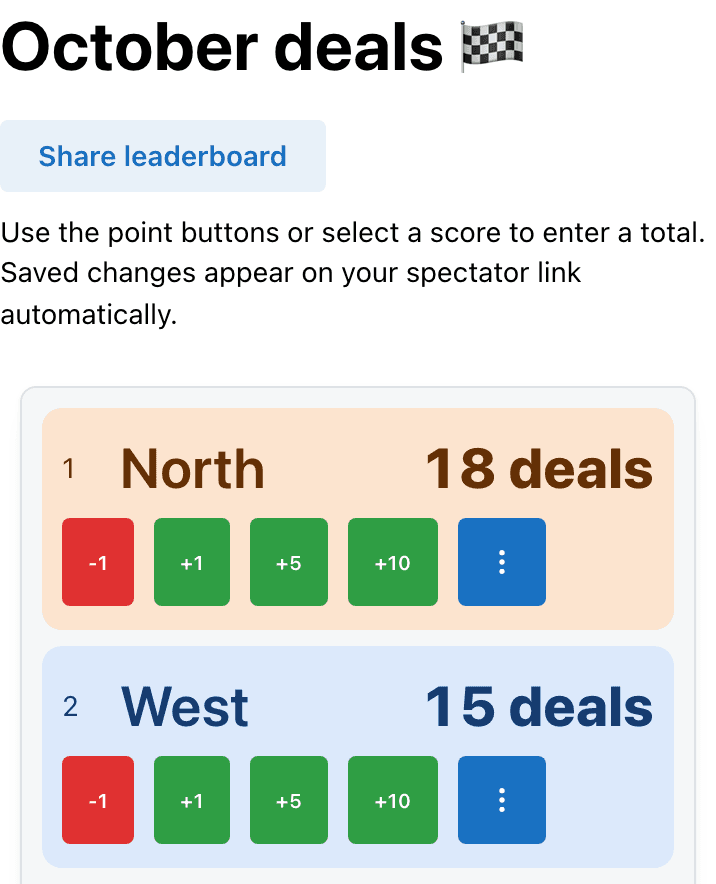
“deals” is set in Settings → Units.
What You Can Track
Each rep or team has one score. Choose the same definition for everyone and make the unit visible in the title or in Settings → Units. For a currency label, use Settings → Prefix. Select Save in the settings dialog to apply the label.
For a weighted contest, calculate the combined score outside the board, then enter it. Raw revenue, call count and percentages should not be mixed in one ranking.
- Deals closed
- Count qualifying deals once. Define when they count and how cancellations affect the total.
- Revenue
- Use one currency and one reporting basis, such as booked revenue. Enter the verified total.
- Calls or demos
- Specify whether you count attempts, connected calls, booked demos or completed demos.
A contest brief you can actually use
Here’s a starting point for a closed-deal contest. Fill in the dates, timezone and owner before sharing it.
- Period
- One calendar month, with a stated start, cutoff time and timezone.
- Metric
- One point per qualifying closed deal. Count each deal once; subtract cancelled deals.
- Credit
- Use the assigned owner in the source report. Agree on shared-deal credit before play.
- Updates
- One named organizer checks the report and enters each team’s total every working day.
- Finish
- Check the source report at the cutoff. Equal totals share the placing; agree on prize sharing before launch.
Still choosing what to score? Compare five sales contest formats with worked scoring rules, including completed demos, target progress and team rates.
Detailed naming, scoring and sharing instructions
Set up your sales leaderboard
- Name the entries. Open the three-dot options menu beside a rep and choose Rename. Use Delete for an unused starting entry.
- Enter the latest total. Select the rep’s score, enter the new value under Points, then select Update Score. For one more deal, use +1. Check the source report before publishing.
- Share the rankings. Select Share leaderboard, then Open spectator view. Put that page on the office TV or send its Spectator link to the team. Keep the admin link for the people who enter scores.
The host’s rows stay in place while you score; the spectator page sorts by the totals. Choose an update time, such as after the daily report, so everyone knows when to expect new numbers.
Keep the deal count honest
In this worked example, North starts with 16 confirmed deals. Three more qualify, then one previously counted deal is cancelled:
16 + 3 − 1 = 18 deals
Enter 18 as the new total. Don’t add 18 to the old score. That gives North the total shown in the example.
Keep the evidence in your source report
Record which three deals qualified and why one was removed in your CRM or spreadsheet. The leaderboard displays the current total; it is not a deal ledger or an automatic CRM connection.
If a deal is credited to more than one rep, decide the credit rule before the contest starts. Counting one deal twice can change the winner even when the arithmetic is correct.
Sales leaderboard guide: spreadsheets, contests and branding
Why Sales Floors Use a Leaderboard
A sales leaderboard gives reps and teams a shared view of the contest: the metric, the current totals and the order. Use it for a short sales sprint or a month-long team challenge, with the rules visible to everyone. The source report still holds the details behind the numbers.
Spreadsheet vs. a Live Leaderboard
Use your spreadsheet or CRM to check transactions and calculate the metric. Use the leaderboard to display the approved totals. You enter each update manually; viewers see the saved change without editing the source report or refreshing the board.
Making It Match Your Brand
Pick a preset theme for free. Pro unlocks custom team colors and logos, sponsor logos and watermark removal. The example above uses distinct colors to help people follow their team as the ranking changes. Check the sharing limits and paid options before putting the link on a busy team channel.
Running a step challenge, trivia night or another workplace game? Use the office competition leaderboard. The leaderboard maker covers other point-based competitions, and the template gallery has more starting formats.
Frequently Asked Questions
Is the sales leaderboard free to use?
Yes. Try the four-rep template without an account. Free shared leaderboards include 50 total views, not 50 simultaneous viewers. Pro includes unlimited views, custom team colors and logos, and watermark removal. A Pro Pass costs $19 per calendar month, paid once for 1–12 months without automatic renewal. Pro Annual costs $79/year and auto-renews. See pricing for all options.
Can I rank reps by revenue instead of deal count?
Yes. Each entry has one numeric total. Enter revenue, deals closed, calls made or a score you calculate yourself. Use the same metric and reporting period for everyone. The board sorts the totals; it does not calculate commission, convert currencies or combine several metrics automatically.
Can I display it on an office TV?
Yes. Select Share leaderboard on the admin page, then Open spectator view. Display that page on a connected TV or projector, or open the spectator link on the screen's browser. Test the font size and connection from the viewing distance you need. For OBS, use the board's embed URL in a Browser Source.
Can reps see their own ranking on their phone?
Yes. Share the Spectator link from Share leaderboard. Anyone with that link can view the current rankings without an account. Give the admin link only to the people responsible for editing scores.
Does the leaderboard sync with my CRM or spreadsheet?
This template uses manual totals. Check your source report and enter the latest values yourself. It does not automatically import Salesforce, HubSpot, Excel or Google Sheets data. Viewer updates are live after you save; that does not mean the source sales data is connected.
How do I start a new contest or handle a tie?
Create a separate board for the next contest if you want to keep the previous board's final standings. Otherwise, select each score and set it to zero after recording the old totals elsewhere. Equal totals share a rank; announce any prize-sharing or tiebreak rule before the contest begins. The board does not choose a prize winner for you.
Get Your Sales Leaderboard Live
Choose the metric, add your team and share the standings.
Need help getting the board on your screen? Contact us.