
Fitness Challenge Leaderboard for Teams and Offices
Run a step challenge, count workouts, or rank teams by challenge points. You enter the totals; everyone follows the saved rankings on their phone or a shared screen.
Create a fitness leaderboardStarts with four teams at zero. One guest board without signup. Free shared boards include 50 total views. See pricing.
Manual updates. No fitness-watch sync or participant self-reporting.
Weekly workouts
Running an Office or Group Challenge
Set up the board before the challenge starts. Choose one metric, a reporting period and a regular update time, then add each person or team. The template starts at zero so you can enter your own totals.
Naming participants, entering totals and sharing
- Name your participants.Open the options menu beside an entry and select Rename. Use Add New Team for another entry or Delete for an unused starting row. An entry can represent one person or a team.
- Enter the current total.Select the score, enter the new total under Points, then select Update Score. To label the number, set Units in Settings and select Save.
- Share the rankings.Select Share leaderboard, then Open spectator view. Send the Spectator link to your team or open it on a TV. Viewers see saved changes without scoring controls.
Keep the admin link for scorekeepers. Scoring rows stay in place; the spectator page sorts by rank automatically. Check your board and shared link before the challenge begins.
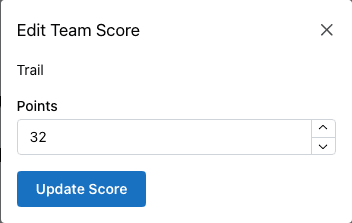
“Points” holds your chosen total, including workouts or steps.
Run a Workplace Step Challenge
Choose your rules before starting. Here is an example seven-day plan for teams with different numbers of people. Participation is optional; agree an alternative activity format with your group if step counting does not suit everyone.
Seven-day plan: reporting, rosters and calculations
- Set the reporting window. Pick the dates and time zone for a Monday–Sunday challenge. Collect reports by noon the following Monday, then publish the checked standings.
- Record the roster. Fix each team’s registered members at the start. Use that count for every update, including when someone has not reported yet.
- Collect one total per person. Agree one step source per person for the week. Do not add overlapping phone and watch readings. Keep individual reports in your own records; share team totals on the board.
- Calculate steps per person. Divide the team’s checked steps by its registered members and round down to a whole number. Calculate this yourself before entering it in the leaderboard.
Worked example: compare team averages
Fictional totals for the same seven days:
- Trail · 3 people
- 84,000 ÷ 3 = 28,000 steps per person
- Stride · 4 people
- 100,000 ÷ 4 = 25,000 steps per person
Trail leads on the chosen average. Enter 28000 and 25000 under Points, using one board entry per team. Tell viewers the scores mean “steps per person” and which dates they cover. The board does not calculate averages or keep daily step records.
Missing reports, corrections and ties
For this example, an unreported member contributes zero until their report arrives; the registered team size stays fixed. Label updates provisional until the cutoff. Agree a correction deadline before starting and keep a note of each correction.
If Trail’s checked total changes to 90,000, calculate 90,000 ÷ 3 = 30,000. Replace its score with 30000; do not add 30,000 to the old score. Apply the same rounding rule to every team. Equal entered scores share a rank; this example accepts a joint finish.
Fitness challenge guide: metrics, reporting and team formats
What a Fitness Challenge Leaderboard Does
A fitness challenge leaderboard tracks each participant’s or team’s progress and ranks everyone by the latest saved total. It gives a step challenge, workout challenge, or office fitness competition a visible scoreboard that everyone can check.
Collect and check the numbers yourself. The board displays your approved totals; it does not connect to wearables, verify exercise, or collect participants’ activity reports.
What You Can Track
Choose one measure for the whole challenge. Set up one entry per person or per team and update it whenever you have new numbers to log.
- Steps
- Enter the checked total for the same date range.
- Workouts
- Agree what counts as a completed session, then count it once.
- Minutes
- Use the same activity and time rules for every entry.
- Points
- Calculate points from your published rules before entering the total.
Spreadsheet vs. a Live Leaderboard
Keep the detailed reports and calculations in your spreadsheet or existing tracking process. Use the leaderboard to show the checked totals in a clear ranking that is readable on phones and shared screens.
Share the spectator link so participants can follow without editing. Anyone with an unprotected admin link can change scores, so share that link only with your scorekeepers or add a board password.
Team-Based vs. Individual Challenges
Rank individuals head-to-head or use one entry for each team’s combined total. Decide which format you are using before the challenge starts. Use the same scoring and reporting period for every entry.
In the example, Trail had 24 workouts and completed 8 more: 24 + 8 = 32. Enter 32 as the new total, rather than adding 32 to the old score. For a correction, replace it with the checked total.
Frequently Asked Questions
Is the fitness challenge leaderboard free?
Yes. Start one board as a guest, or keep up to 10 boards with a free account. Scoring and standard themes are free. Each Free shared board includes 50 total views, not 50 simultaneous viewers. Pro adds unlimited views, custom colors, team and sponsor logos, and watermark removal. A Pro Pass costs $19 per calendar month: choose 1–12 months and pay once, with no automatic renewal. Pro Annual is $79 per year and auto-renews until canceled.
Can I track steps, workouts, or points instead of wins?
Yes. Each entry has one numeric total. Use steps, completed workouts, minutes exercised, or points you calculate from your challenge rules. Use the same metric and reporting period for everyone. The leaderboard ranks the totals you enter; it does not combine different metrics automatically.
Can teams see the leaderboard on their own phones?
Yes. Select Share leaderboard on the admin page and send the Spectator link to your team. Viewers can see the current standings without signing in or accessing scoring controls. Open spectator view also works on a connected TV or projector. Keep the admin link for the people responsible for updating scores.
How often do I need to update scores?
Daily, weekly, or whenever you collect verified numbers from participants. Select a participant’s score, enter the current total under Points, then select Update Score. The spectator view reorders after the change is saved. Admin scoring rows stay in place so you can keep updating the same participant.
Does it sync with fitness watches or let participants log workouts?
No. This template uses manual totals entered by the organizer. It does not sync with fitness watches, health apps or spreadsheets, and it has no participant self-reporting form. Collect the numbers through your existing process, check them, and enter each current total yourself.
Launch Your Fitness Challenge Leaderboard
Add your participants, enter the totals and share the standings.